Attack Vector Artifacts

Tuesday, November 9, 2010 Posted by Corey Harrell 1 comments
An investigation into a compromised system may involve answering various questions such as how did this occur or what security controls failed. To answer either question I think you would have to identify the point of unauthorized access. For example, did the incident originate from a user opening a malicious email attachment, did a user visit a malicious website or did someone just have physical access to the computer. I think you have to determine the attack vector used in order to identify the point of unauthorized access.

SearchSecurity defines an attack vector as "a path or means by which a hacker (or cracker) can gain access to a computer or network server in order to deliver a payload or malicious outcome". Using this definition, the attack vector can be broken down into three separate components. The path or means is the exploit used, the payload is the outcome of the exploit, and the delivery mechanism is what delivers the exploit and/or the payload to the target. I know the definition lumps the delivery mechanism and exploit together to make up the means but I think these need to be separated in order to understand the artifacts left on a system. For example, the exploit could be a malicious PDF but the delivery mechanisms such as an email or a website would leave different artifacts on a computer. Exploits, payloads, and delivery mechanisms may leave artifacts on a compromised system and these artifacts could be used to identify the attack vector used.

Exploit
SearchSecurity defines an exploit as "an attack on a computer system, especially one that takes advantage of a particular vulnerability that the system offers to intruders". Exploits can target vulnerabilities in operating systems or applications. Exploits can also target a feature for malicious purpose such as the Windows auto-run feature. There is information available about exploits but the one perspective I don’t see often (or have been unable to find) is the digital forensics point of view. For example, over the past few weeks there have been articles or posts about Java vulnerabilities being targeted more than PDFs, an unpatched Internet explorer vulnerability being added to the Eleonore exploit pack, and a zero-day Adobe flash vulnerability. Despite all of the information about these vulnerabilities being exploited, I have not seen any information about the artifacts left on a system from these vulnerabilities being exploited. If Java is being exploited then what are the artifacts left on a system which point to this attack vector. How does this attack vector compare to an attack targeting Adobe flash. Knowing the exploit artifacts left on a system could be one piece of the puzzle to identifying the attack vector.

Payload
SearchSecurity defines a payload as "the bits that get delivered to the end user at the destination". The payload of an attack can range from unauthorized access to remote code execution to denial of service to escalation of privileges. I think this is an area where there is a wealth of information about the artifacts from common payloads. Take malware as an example. There is a significant amount of information about the artifacts left on a system by malware because of the malware reverse engineers, security bloggers, security companies, antivirus companies, and books.

Delivery Mechanism
The third part of the attack vector is the delivery mechanism which delivers the exploit and/or payload to the target. The delivery mechanisms could include email, removable media, network services (such as file sharing), physical access, or the Internet. Artifacts could be present on a system from the delivery method used to send the exploit or payload. Take the example of a PDF containing an exploit which downloads a piece of malware. The artifacts left by the malicious PDF and the malware would remain consistent between different attacks but the artifacts left by the delivery mechanism would vary. For example, the PDF being delivered by email would leave different artifacts then the PDF being delivered by a website. Similar to the exploits, this is also one area where there isn't a lot of information from the digital forensics point of view.

How Could these Artifacts Help?
Artifacts could be categorized under the three components of the attack vector. The three components could be further subcategorized until you get to the most basic level. To illustrate I will show a potential way for the delivery mechanism to be broken down to a basic level so the artifacts could be documented. The category at the top would be the three attack vector components.

The subcategories of the delivery mechanism would be the various ways for exploits and payloads to be delivered to a target system. A few examples are shown below.

These subcategories could be further broken down into more subcategories. For example, the email category could be separated into web email or email using a client application. The common email attack techniques such as clickable links or file attachments would be underneath the web mail and client application categories. This would be the basic level that could be examined to determine what artifacts are left on a system by these attack techniques. For example, what are the artifacts if a user opens an email attachment or clicks a link using a web email client or an email application? How would both of these techniques appear in a timeline?

To further illustrate how a category could be broken down to a basic level the picture below shows a potential way to subcategorize the Exploit category.

Subcategorizing until you get to the most basic level would allow you to document the attack vector artifacts. For me, having a resource that outlines these artifacts would be very helpful. I could use it as a guide in order to gain a basic understanding of the different types of attacks and the artifacts left by those attacks. The artifacts could be combined together to illustrate how a certain attack may appear on a system. For example, the artifacts left by an Microsoft Word exploit could be combined with the artifacts of a user opening an email attachment to show what it might look like if a user opened a malicious Word document email attachment. Besides using this resource for learning purposes, I could also use it as a reference during an examination of a system. For example, if a timeline shows activity on a system then the resource could help validate what I’m seeing. I could have used this type of resource to better understand the Windows Help Center vulnerability during the examination of the system in my post Anatomy of a Drive-by Part II.

This has been an area I have been considering for a few months but I haven't had the time to pursue it. However, I think it would be a good learning exercise to try to document the artifacts of a few exploits and delivery mechanisms so I'm making it a point to find the time. Anyone have any thoughts or comments about trying to document the artifacts from the common attack vectors?
Labels:

Reviewing Timelines with Excel

Wednesday, November 3, 2010 Posted by Corey Harrell 4 comments
Generating timelines used to be a manual method for me until I started to use Harlan Carvey's timeline tools and Kristinn Gudjonsson's log2timeline. I finally saw the light of the power of a timeline because the tools allow for the automated generation of timelines. This enabled me to focus on how to apply this technique in different types of investigations. My next step was to determine how to review the timelines and two methods that can be used are Grep and Microsoft Excel. The purpose of this post is to provide a tutorial on how to use Microsoft Excel 2007 to review timelines.

Grep and Excel both have the ability to examine timelines and to create custom timelines to display certain types of data. However, I prefer to use Excel over Grep because Excel allows me to keep track on my timeline examination. I can create a separate column for notes or I can highlight rows or text containing items of interest. I can even use a color scheme to highlight groups of rows that are related. For example, if a system is infected with two pieces of malware then I can use a certain color for each malware to highlight the rows associated with that malware. The following are various activities for reviewing a timeline with Excel.

* Getting Started
* Importing Timeline Data into Excel
* Filters
* Advanced Filters
* Find

Custom timelines can be created using Excel filters while the Find function can be used to examine the timeline. In my limited experience with timelines, I find there isn't a set order for these activities since the investigation will dictate what needs to be done. Sometimes I start out examining the timeline with Find while at other times I first create custom timelines in order to narrow down where to start examining the timeline with Find. This post will show the functionality of Excel filters and demonstrate how Find can be used for examinations.

Getting Started
The timeline first has to be generated and stored in the csv file format. I'm not going to discuss the creation of timelines but the following sites have information on the topic: Windows Incident Response blog, Log2timeline website, and the SANs forensic blog. One of the decisions that has to be made when creating timelines is to decide what data to include. The approach I take is to make a judgment call about the artifacts I might need based on the type of investigation and a few quick checks on the computer being examined. I include all of these artifacts in one timeline then I create custom timelines by applying Excel filters.

For this post, I didn't have the time to setup a scenario and a test system so I am using the image of the computer I referenced as Infected 1 in the post Is the System Infected. The timeline was created using tools in the Sift workstation including the Sleuthkit, regtime.pl, and an updated version of timescanner.

Side note: Kristinn Gudjonsson was kind enough to provide assistance to a complete stranger. He pointed out I was using an older version of log2timeline and helped me upgrade to the latest version. Timescanner now has an input module which allows you to specify what artifacts to include in the timeline instead of including everything. This is awesome; not only is timescanner faster but specifying only the artifacts you need speeds up the generation of timelines.

Back to the post, to review the timeline you should have a lead. This lead can come from numerous places such as a person’s statement, a website of interest, antivirus log, intrusion detection system alert, examination of a computer's auto-start locations or the examination of a computer's volatile data. The lead I'm using for this post came from the examination of volatile data. The examination located a few suspicious items which were the asr64_ldm.exe process, _VOIDd.sys driver, and DLLs with names starting with _void.

Importing Timeline Data into Excel
The timeline in the csv file can be directly opened by using Excel. However, I have had issues with trying to add edits to the timeline using this method. To avoid these issues I now import the csv file as a comma delimited file. (Note: selecting comma delimited results in rows containing commas being separated into different columns but I found the information I need to filter on still appears under the filename column. An example of a row containing commas is the parsed Windows event logs.)

The following steps outline how to import the csv file into Excel.

The Excel program needs to be opened first. The area to import external data is located on the Data Ribbon. The option to get data from a text file is required for a csv file.

The picture below shows the default option is to select the Fix Width. The issue with the Fixed Width is that the data is not separated into different columns as highlighted in the red box below.

The option for Delimited needs to be selected instead of using the default Fixed Width.

After you select the Delimted option the next page allows you to set delimiters in the data. I found using the comma delimiter separates the timeline data into the correct columns as shown below.

At this point the Finish button can be selected to import the csv file. Excel will prompt about where to import the data and the default selection of the existing blank worksheet is fine. The process may take a few seconds to a couple of minutes.

Filters
I mostly use filters to create custom timelines or to see relationships between data with the noise suppressed. Excel has two filter functions which are filters and advanced filters. Both filters can be accessed on the Data Ribbon.

Clicking the Filter icon activates Excel filters and the top row of the spreadsheet now has drop down menus for each column.

The drop down menu lets you apply a filter to the data in that column. A text filter can be applied to the column in order to create a custom timeline of your choice. For example, "event log" or "internet history" can be filtered under the File Name column to create a timeline of just the event logs or Internet usage while "March 11 2010" can be filtered under the Date column to create a timeline for March 11, 2010. The picture below shows the options for a text filter.

As you can see there are different types of text filters. To demonstrate this functionality I selected the Contains option underneath the File Name column. This brings up the Custom Autofilter window which allows you to specify only two variables for your filters. The limitation of two variables is why advanced filters are required. Two wildcards are available for filters which are the ? for a single character or the * for a series of characters. The picture below shows I am only using the word prefetch to only show rows containing this word.

The rows' numbers turn to blue indicating a filter is applied. Also, the column’s drop down arrow is changed to the filter icon. Both of these changes can be seen in the picture below.

If desired, a filter can be applied to the other columns that still have the drop down arrow. For example, I can apply a filter for ???b to the type column to further filter the data so only items that have been created are shown. The picture below shows there are two filters applied.

To remove the filters just click the Clear icon which is next to the Filter icon on the Data Ribbon. Click the Filter icon again in order to turn off the filter functionality.

Advanced Filters
I started looking into advanced filters when I wanted to create a custom timeline to show someone's Internet activity involving downloading numerous files. Basically, I wanted to use a combination of variables involving file names, folders, folder paths, parsed artifacts, and dates to create the timeline (I wanted to filter using about 20 different variables in the Date and File Name columns). I couldn't use the Excel filters since only two variables can be used so I started to look into advanced filters when I came across Excel Advanced Filter Introduction.

To use advanced filters you first have to set up a database within the worksheet. You can use the headings of the column you want to filter on but I find it easier to copy the entire top row right away so I don't have to change it later.

The database has to be setup outside of the data in the worksheet but I usually place it below the timeline data. The picture below shows the database is separated from the timeline data.

I use advanced filters in order to string together different functions (or/and) with different variables. The and statement is when the variables are on the same row. The picture below is the filter showing the row must have ???b under the Type column and prefetch under the File Name column. The asterisk is required around the word prefetch in order to filter on rows which contain the word prefetch.

The or statement occurs when the variables are on different rows. The picture below shows the filter to only show the rows with asr64_ldm or _void under the File Name column.

Another example of the or statement is below. This statement only wants to show the rows which have Mar 12 2010 under the Date column or Event Log under the File Name column.

Once the database is setup with the filter you want to apply then the next step is to apply the advanced filter. This will be demonstrated using the search for asr64_ldm or _void under the File Name column. First select a cell containing timeline data (this can be any cell containing the timeline data) then select the Advanced icon on the Data Ribbon.

The Advanced Filter window will appear with the default option to filter the list in place. You have the ability to copy the filtered data to another worksheet but this tutorial will be filtering the list in place. Excel should automatically detect the List Range but this can be verified by scrolling down to the last line of the timeline data. The List Range value should contain all of the rows and columns with timeline data (note the filename will be column H but Excel will have a higher column due to selecting comma delimited when importing data). The picture below shows the last row containing timeline data matching the last row in the List Range.

If all of the timeline data is reflected in the List Range then the Criteria Range needs to be verified. Excel may automatically detect this but the Criteria Range Excel detected for me was the previous filter I used. To configure the filter change the Criteria Range to match your filter. For example, the current selection is $A$157121:$A$1571 which is saying the filter is column A row 157121. This filter needs to be changed to show column H rows 157121 to 157123.

The Criteria Range value can be deleted then with your mouse you can first select cell H:157121 then hold down the shift key and select cell H:157123. This is shown below (note: the same way would be used to select a filter spanning multiple columns except the first cell would be under the first column).

The OK button can be selected once the Criteria Range value is configured. The picture below shows a portion of the filter being applied to the data. As you can see, the filter shows the persistence mechanism for _voidd.sys is a service and asr64_ldm.exe was created on 03/12/10 at 11:29:06.

Find
I use Excel filters to create custom timelines or to see relationships between data while I use the Find funtion to examine the timeline since filters hide some the activity around an item of interest. To open the Find and Replace window you can use the key combination of CTRL and F or select the Find icon on the Home Ribbon. The picture below shows the Home Ribbon.

The Find and Replace window has the ability to find the next occurrence of a keyword or to find all occurrences of a keyword. This is accomplished by either selecting the Find Next or Find All option.

The Find Next option will be shown first by searching for the keyword asr64_ldm.exe. This search is only being performed to show how it works since the examination will use the Find All option. The picture below shows the search selects the first row containing asr64_ldm.exe.

I mostly use the Find Next option to determine if a keyword is present in the worksheet. For example, an antivirus scan might have been used to clean a system so I may search on the name of the malware to determine if the name is present anywhere else on the computer. I think the Find All option is the better method to examine the timeline since it not only enables you to quickly move around in the timeline but it's easier to review the activity around a keyword. The examination will start by first reviewing the initial programs of interest which are asr64_ldm.exe, _void.sys, and the DLLs' names starting with _void to determine which appeared first on the computer. The picture below shows the find All option being used to locate all occurrences of asr64_ldm.exe. As was mentioned previously, asr64_ldm.exe was created on 03/12/10 at 11:29:06.

The Find All option was used to search for the rogue driver _voidd.sys and this is shown below.

The Find All option was used to search for the rogue DLLs on the computer and this is shown below. The Find and Replace window shows the DLLs appear on the system after the _voidd.sys driver.

The _voidd.sys driver appeared on the system at 11:29:28 and this was 22 seconds after asr64_ldm.exe. This means the initial focus should be on the activity prior to asr64_ldm.exe appearing on the system. The Find All option was used to find the first occurrence of asr64_ldm.exe.

The activity before the first occurrence of asr64_ldm.exe shows that the administrator user account accessed a file called update.exe as can be seen in the picture below.

The Find All option was used to search for all references to the update.exe file on the computer. One of the interesting hits shows update.exe is associated with a website visited by the Administrator user account.

Advanced Filters during Examination
As I mentioned previously, I use advanced filters in order to see relationships between the data. The brief examination using the Find function identified a suspicious program being launched a few seconds before the first malware appeared on the system and this suspicious program is associated with the Internet. An advanced filter can be used to see the relationships between the data.

The picture below shows the filter being applied to see this relationship by using a combination of and statements being linked together by or statements. For example, Internet Explorer history or Temporary Internet Files folder activity for March 12, 2010 will appear in the timeline. The Criteria Range value for the filter in the picture below is Sheet1!$A$157121:$H$157132. (Note: I also included in the filter and statements to see the Prefetch folder activity and all files created on 03/12/10 at 11:28 or 11:29.)

The applied filter shows there wasn’t much Internet activity before update.exe being accessed since there were only two websites accessed. The website that stands out is highlighted in red.

The picture below shows a portion of the timeline with activity involving this website.

The examination isn't even close to being complete but I hope I was able to demonstrate how Excel could be used to review timelines. Excel provides you with the ability to create custom timelines, view relationships between data, or examine timelines.

I hope this tutorial has been helpful.
Labels: ,

End to End Digital Investigation

Monday, October 25, 2010 Posted by Corey Harrell 0 comments
The Overall Digital Forensic Investigation Process post outlined the various phases involved with the investigation process. These phases were: preparation, identification, collection, analysis, reporting, and archiving. There was one issue with this basic overall process that comes to light when an investigation involves a network.

If an investigation is to determine if a person accessed a file on their computer the overall process matches up pretty well. The identification only involves one person, the collection is only a single computer, and the analysis only involves data from one data source which is the computer. The only thing missing is how to organize your evidence so your conclusion can be tested. The previous example is a pretty straight forward investigation but now let's see what happens when a network becomes involved. What if the investigation is to determine if a person accessed a file on a server within an organization? How about if the investigation is to determine if a person accessed a file on a Internet web server? The addition of a network results in the addition of data sources which could potentially store evidence. The data sources can now include servers (proxy servers, Windows domain controllers, or file and print servers), network logs (web server logs, router logs, or firewall logs), or captured network traffic. The basic overall process doesn't cover how to identify these data sources, examine these data sources, how to combine the evidence from different data sources, or how to organize your evidence for analysis.

I noticed the limitation of the basic overall process on my cases which involved multiple subjects, multiple computers, multiple servers, etc. The scenario of a malware infection I have been using made the limitation even worse because this could involve one, 10, 20, or 500 computers across a network. I needed a scalable and repeated process that I could use for the identification, collection, and analysis of information in a networked environment regardless of the type of case (security incident, audit, policy violation, etc.). This is where Dr. Stephenson's End to End Digital Investigation (EEDI) framework comes into play. Not only does EEDI meet the needs I was looking for but it didn't require any significant changes from what I was currently doing because it is just a different way to approach the investigation.

I know I can't do an adequate job of explaining EEDI compared to Dr. Stephenson which is why I am quoting his articles when discussing the framework. If you want to know more about EEDI then I would recommend you read one of his articles. Currently, there is limited information about EEDI on the Internet but I was able to locate a brief article which can be found here.

What is the EEDI

The premise of the framework takes into count that "every digital crime has a source point, a destination point and a path between those two points" (Stephenson, Getting the Whole Picture, 2002, 2003). This means EEDI takes into account the source of the incident, destination of the incident, and all the intermediate devices along the path through the network. EEDI is a "structured method of collecting evidence along the entire path from source to target, using each piece of evidence in that chain to corroborate other evidence (either digitally or traditionally developed) and an approach to presenting the completed chain effectively in court"(Stephenson, Getting the Whole Picture, 2002, 2003).

The EEDI process consists of the following nine activities:

* Collecting evidence
* Analysis of individual events
* Preliminary correlation
* Event normalization
* Event deconfliction
* Second level correlation
* Timeline analysis
* Chain of evidence construction
* Corroboration

Collecting Evidence

EEDI helped me with the issue I was having during the Identification and Collection phases. This issue was scoping an investigation to determine the systems involved and the data sources with potential evidentiary items. I have found the approach of viewing each case as having a source point, destination point, and a path between them to be effective when identifying the scope of an investigation. Take the previous example of a person accessing a file. The source point is the computer the person is using, the destination point is the computer storing the file being accessed, and the path is the network between those two computers. Following this path can help you identify the data sources with potential evidentiary items which needs to be collected.

Analysis of Individual Events

"This analysis step examines isolated events and assesses what value they may have to the overall investigation and how they may tie into each other" (Stephenson, Cyber Investigation, 2009). EEDI is framework to investigate security incidents so this activity's focus is on the examination of each event in a security incident. I had to modify this activity so it would accommodate any type of investigation from security incidents to policy violations to financial audits.

The first change I made was to change the purpose of the activity to be the analysis of individual events or individual case. This slight change enables an investigation to be performed into other types of cases which don't fall into the security incident category. The second change was to incorporate the examination of digital data to locate evidence which may be relevant to the investigation. I decided to organize the examination based on the data sources being examined. Two potential data sources are network logs and a computer's hard drive. This organization allowed me to examine each data source individually. The last change was to incorporate the various examination steps under each data source. The example below shows a few examination steps for examining a computer's hard drive:

* Analysis of individual events (or individual case)
     * System examination
         * Examination of volatile data
         * Hash the files on the system
         * Search for known malware

Basically, the changes I made were to incorporate all of my existing examination steps into this EEDI activity. This means there was hardly any change from the way I was currently performing examinations and the only difference is how I organized any found evidence.

Preliminary correlation

The "first correlation step is to examine the individual events and see how they may correlate into a chain of evidence"(Stephenson, Getting the Whole Picture, 2002, 2003). The "main purpose here is to understand in broad terms what happened, what systems or devices were involved and when the events occurred"(Stephenson, Getting the Whole Picture, 2002, 2003).

The slight change I made in the analysis of individual events trickles down into this activity. All of the evidence located through the examination of the various data sources is correlated into a chain of evidence. The chain of evidence provides an overview of the evidence in your investigation.

Event Normalizing

The definition of normalization is the "combining evidentiary data of the same type from different sources with different vocabularies into a single, integrated terminology that can be used effectively in the correlation process" (Stephenson, Cyber Investigation, 2009). One example of normalization is adjusting the times in order to take into account the time differences between data sources. All of the times should be normalized into a single time. For example, if there were two computers with different times then the time stamps of the evidence from one computer should be adjusted to the time of the other computer.

Event Deconfliction

The definition of deconfliction is the "combining of multiple reportings of the same evidentiary event by the same or different reporting sources, into a single, reported, normalized evidentiary event" (Stephenson, Cyber Investigation, 2009). This activity is required when an item is reported multiple times from the same source. The one example I have come across when this was required involved emails. During an email examination, I will review emails located on the email server, the person's email file, and any backup copies of the person's email file on their computer. Sometimes this results in multiple copies of the same email being found. All of the copies of the email doesn't have to be in the chain of evidence since only one email is required.

Second-Level Correlation

"Second-level correlation is an extension of earlier correlation efforts. However, at this point, views of various events have been refined through normalization or deconfliction" (Stephenson, Cyber Investigation, 2009).

Timeline Analysis

"In this step, normalized and deconflicted events are used to build a timeline using an iterative process that should be updated constantly as the investigation continues to develop new evidence" (Stephenson, Cyber Investigation, 2009).

Chain of Evidence Construction

The evidence in the timeline should be used to form a chain of evidence. "Ideally, each link in the chain, supported by one or more pieces of evidence, will lead to the next link" (Stephenson, Cyber Investigation, 2009). When it is not possible to establish a direct link between evidence a lead can be used to point to the next piece of evidence. "Leads can point us to valid evidence and that valid evidence can, at some point, become the evidence link" (Stephenson, Cyber Investigation, 2009). I briefly touched on this topic in an earlier post titled Broken Chain.

Corroboration

In this step, "we attempt to corroborate each piece of evidence and each event in our chain with other, independent evidence or events" (Stephenson, Cyber Investigation, 2009). This final "evidence chain consists of primary evidence corroborated by additional secondary evidence" (Stephenson, Cyber Investigation, 2009).

To date, the majority of my digital forensic examinations are in support of an investigation being conducted by a group outside of the forensic unit. For example, the human resource department may be conducting an investigation of an employee violating company policy and asks for a forensic analysis to help their investigation. This results in the majority of the corroboration of primary evidence with the secondary evidence being conducted by the persons performing the investigation. However, there is still some secondary evidence which can be collaborated such as information obtained through research.

Conclusion

The EEDI framework combined with the overall digital forensic investigation process provided me with a flexible, scalable, and repeatable investigation process. This process could be used regardless if someone drops off a hard drive asking you to find how it became infected, if an audit team needs assistance investigating a suspected fraud involving multiple people with multiple data sources, or if a malware outbreak is affecting 50 computers on a network. All of these scenarios would require a cyber investigation and I wanted a process which could be used for any type investigation. At this point in my journey I feel that I have found this process.

To see how the cyber investigation methodology looks with the steps for a system examination can be located on the Journey into IR methodology page.


References

As I mentioned previously, one of Dr. Stephenson's articles titled A Comprehensive Approach to Digital Incident Investigation can be located here.

Stephenson, P. (2009). Cyber Investigation. In S. Bosworth, M. Kabay, & E. Whyne, Computer Security Handbook (pp. 55.1 - 55.27). Hoboken: John Wiley & Sons, Inc.

Stephenson, P. (2002, 2003). Getting the Whole Picture A Series of 12 Columns End to End Digital Investigation Appearing in Elsevier Advanced Technology's "Computer Fraud and Security" Publication in 2002 and 2003. Retrieved from Web Site of Peter Stephenson: Document is no longer hosted on Dr. Stephenson's webpage

Overall DF Investigation Process

Tuesday, October 19, 2010 Posted by Corey Harrell 0 comments
In order to paint an accurate picture of how I started my journey, my next two posts will be about overall digital forensic (DF) investigation process. Technically these should have been the first two posts but I decided to discuss the examination steps and the testing I did last spring first in order to share information which was relevant to a few discussions at the time. After these two posts are completed then I will finally be caught up to where I currently am in my journey.

The majority of the time when you encounter something new one of the first things you should try to do is understand the overall process. If you want to plant a garden you don't just dig a hole in your yard, throw in some seeds, and hope for the best. If you want to learn how to fish you don't buy fishing equipment at a local store then go to the closest body of water to toss the equipment in. These approaches may result in some of the plants growing or catching a fish after the fishing pole knocked it unconscious but most likely the majority of the time these approaches will fail. The reason for this is because both approaches just tried to wing it instead of first trying to understand the overall process.

What does this have to do with investigating a security incident? When I approached this topic I started by trying to understand the overall DF investigation process prior to the complexities of the investigation such as the various examination steps, tools, techniques, or test systems. My goal was to have a repeatable investigation process which would provide consistent results instead of occasionally being lucky by winging it. To accomplish this goal I started with understanding the different phases, including their purposes, of the DF investigation process. i think the various activities within these phases are critical to understand but my focus in this post is just on the phases.

There are different models outlining the phases of the DF process with three of them being the DFRWS Framework, NIST Guide to Integrating Forensic Techniques into Incident Response, and Building a Digital Forensic Laboratory book. These models also discuss the various activities which can occur within these phases such as case management, evidence management, chain of custody, and documentation.

In 2001, the Digital Forensic Research Workshop (DFRWS) released the Investigation Process for Digital Forensic Science (A Road Map for Digital Forensic Research, 2001). The image below outlines the phases of this investigation process.


In 2006, the National Institute of Standards and Technology (NIST) released the special publication 800-86 Guide to Integrating Forensic Techniques into Incident Response (Kent, Chevalier, Grance, & Dang, 2006). The image below outlines the phases of this investigation process.


In 2009, Elsevier, Inc released the book Building a Digital Forensic Laboratory. This book discussed the phases of the investigation process which is shown below (Jones & Valli, 2009).


As can be seen in the pictures above, there are similarities between all three investigation processes (actually two of the processes are similar to the DFRWS process). The picture below shows the phases of the investigation process I decided use (note: the phases below were created using a combination of the references used in this post, my past experience processing cases, and conversations with a colleague who helped me understand the overall process when I first started in this field).


As you can see the phases above are nothing new and basically just a reorganization of the phases in the models I briefly discussed. The following are brief descriptions about these phases:

The Preparation phase covers all of the activities which would occur before you are working on a case. This would include the activities for preserving evidence and to establish guidelines on how to manage evidence (Jones & Valli, 2009). These guidelines can help ensure evidence is preserved throughout the entire investigation process.  This phase would also cover other activities such as staff training, staff recruitment, tool validation, and quality assurance measures.

The Identification phase is when there's a request for a DF investigation. In my past experience, DF has been more of a service which supports other business processes. This means a request by a customer starts the investigation process. This phase involves understanding the purpose of the request and the scope of the investigation such as type of case, subjects involved, and systems involved.

The Collection phase is when the identification and collection of any items that could be of evidential value occurs (Jones & Valli, 2009). This could include digital content such as hard drives and removable media but it can also include other types of information such as interviews and observations.

The Analysis phase includes the examination and analysis of the information. The examination is to identify evidence in the data which may be relevant to the case while the analysis is to analyze the evidence collected, identified, and extracted to develop a set of conclusions (Stephenson, 2009). The analysis would also include testing those conclusions to ensure they are valid.

The Reporting phase is when the evidence and your conclusion are presented to the person or group requesting the DF investigation.

The Archival phase is the management of the long term storage of the case materials including the evidence once the case has been closed.

My journey has initially focused on the Identification, Collection, and Analysis phases. The scenario I decided to use was a malware infection then I realized the potential complexity of this scenario in a networked environment. It could be one system or 100 systems. Potential sources of evidence could be servers, clients, network logs, or removable media. The infection vector could be email, network shares, or the Internet. I think you can see the picture of this complexity and I wanted to know how to approach this type of investigation during the Identification, Collection, and Analysis phases.

This is where Dr. Stephenson's End to End Digital Investigation (EEDI) framework comes into the picture. My next post will explain why I needed EEDI, how EEDI works, how EEDI can help test your conclusions, and the benefits of EEDI for the investigation process.


References

A Road Map for Digital Forensic Research. (2001, August 7-8). Retrieved from DFRWS 2011[banner]: http://www.dfrws.org/2001/dfrws-rm-final.pdf

Jones, A., & Valli, C. (2009). Building a Digital Forensic Laboratory Establishing and Managing a Successful Facility. Burlington: Elsevier, Inc.

Kent, K., Chevalier, S., Grance, T., & Dang, H. (2006, August). Guide to Integrating Forensic Techniques into Incident Response. Retrieved from National Institute of Standards and Technology: http://csrc.nist.gov/publications/nistpubs/800-86/SP800-86.pdf

Stephenson, P. (2009). Cyber Investigation. In S. Bosworth, M. Kabay, & E. Whyne, Computer Security Handbook (pp. 55.1 - 55.27). Hoboken: John Wiley & Sons, Inc.

Anatomy of a Drive-by Part 2

Wednesday, October 6, 2010 Posted by Corey Harrell 3 comments
Anatomy of a Drive-by Part 1 was the first part of this post and it provided some background information about the system under examination. Part 1 also covered the first two examination steps which were the examination of the auto-start locations and the examination of the files of interest. This post is the second half of the examination where the question of what happened on the computer will tried to be answered.

As a reminder, the examination so far has located the following: five copies of the SpyPro (MD5 ce5806f3f3a2afa8efe0272440ae6b2d), two copies of Hiloti (MD5 5170e6923859a70ede3b2685ccd5ba04), and one copy of Hiloti (MD5 30fd84f3c0e0dc7666658dc52c216a2a). The first piece of malware was created on the system at 09/12/10 06:38:42PM.

***Caution: The URLs and domains I reference in this post were hosting malicious content at some point in time. I haven’t sanitized these URLs or domains (besides making them un-clickable) in order to allow people to conduct their own research if they choose to. With that said, please use caution if you are going to research any of the URLs or domains since they still may be hosting malicious content.****


Timeline Analysis
The previous steps indicated the timeframe I was interested in was on the evening of 09/12/2010. To reduce the amount of data in my timeline I applied an Excel filter to only show entries from this day since my focus was determining how the malware was created on the system. I recommended to my friend that he turn off his computer and the timeline showed the computer has been powered off since my recommendation was made. The last entry in the timeline occurred at Sun 09/12/2010 20:13:08 which was approximately 95 minutes after the malware appeared on the system.

I started my timeline review at Sun 09/12/2010 20:13:08 and worked my way backwards. Whenever the timeline showed a file of potential interest I would examine the file closer using other tools such as Encase. I will be providing multiple updates throughout the timeline analysis section in order to summarize how certain artifacts tie together before I move on to the next set of artifacts.

Before I asked my friend to turn off his computer I tried to help him identify the rogue security program by using the task manager. This approach didn’t work because the security program blocked any new process, including the task manager, from running. In addition to blocking the new process, a fake security alert would appear indicating the process was virus. The timeline entries below show the task manager being accessed.
Working through this portion of the timeline I had to go through a lot of files that were accessed. The amount of files accessed in such a short period of time made it appear like the computer was shutting down and/or a scan was occurring on the system. The next timeline entry of interest occurred at 19:05:45 which involved one of the copies of SpyPro (MD5 ce5806f3f3a2afa8efe0272440ae6b2d).
The image below shows the next timeline entries of interest.
The files arezires.dll and get2[1].php were created on the system at the same time which was 19:03:12. Both of the files were examined and it was determined the files were the same since the MD5 hashes matched each other. The following is the additional information about the files:

arezires.dll and get2[1].php

* File path: \WINDOWS\arezires.dll and \Documents and Settings\*****\Local Settings\Temporary Internet Files\Content.IE5\M95YKOXS\get2[1].php
* VT result: malicious and hash search identified the file as FakeWarn and FakeAlert
* MD5 hash: ef3501a3a215949bd61142139f631406
* Creation date: 09/12/10 07:03:12PM
* Last written date: 09/12/10 07:03:12PM
* MFT last modification date : 09/12/10 07:03:12PM

The content of the arezires.dll file contained script which appeared to force a person to a certain website as can be seen below.
I ran the arezies.dll file through the online scanner Jsunpack, and the following paths were being accessed on the domain: logotarget.jpg, images/point.png, and images/downbutton.png. A Google search for the domain antivirpwr[dot]com was performed and the top four hits are shown below.
As shown in the picture, the antivirpwr[dot]com domain is advertising security software and my theory is this would have been the website my friend would have been directed to if he tried to purchase the SpyPro software. McAfee’s description write-up on FakeAlert-SpyPro.gen.ai strengthens this theory since the sample analyzed tried to access the same website listed in the arezires.dll file. I never confirmed this theory because I didn’t examine the SpyPro Trojan I located.

Continuing on with the timeline there was another entry that occurred at 19:03:12 and is shown below.
The entry shows that the get2[1].php (MD5 ef3501a3a215949bd61142139f631406) file came from the 231207da0903[dot]deanard[dot]com domain. I queried the domain using Robtex and the domain mapped to an IP address which is shared with over 40 other hosts. The picture below shows a few of these hosts.
Looking further into the 231207da0903[dot]deanard[dot]com domain I reviewed the records section of Robtex and the picture below shows the IP address for this domain mapped to *[dot]deanard[dot]com.
231207da0903[dot]deanard[dot]com was mapping back to the parent domain so I performed a Google search on the domain which lead me to a Malware Intelligence blog post titled Pirated Edition Affiliate program Pay-per-Install. The post discusses the business model of affiliate programs paying customers for spreading their malware. The following are the interesting connections between the post and the system I was examining:


* The file being referenced in the post was named get[2].php which has the same name as the file brought down by deanard[dot]com domain.
* The host assiocated with the get[2].php file was husseta[dot]com which is also one of the hosts that is mapped to the 94.75.221.77.
* The deanard[dot]com domain also maps to the IP address discussed in the blog post.
* The IP address in the post 95.221.98.246 and the IP address 94.75.221.77 both have the same Autonomous System number which is AS16265 “LeaseWeb AS Amsterdam, Netherlands”.

I found this to be a fascinating connection and it makes me wonder if this affiliate program is involved with the malware present on my friend’s system, and if so how would you go about to confirm this link.

Timeline Examination Summary Update:
**** So far, the analysis determined the computer has been powered off since Sunday night and there is activity involving the domain deanard[dot]com. This domain has links to an affiliate program which pays customers to spread their malware. There were two copies of the FakeAlert (MD5 ef3501a3a215949bd61142139f631406) downloaded from deanard[dot]com at 09/12/10 07:03:12PM. The FakeAlert made references to the antivirpwr[dot]com website which was advertising security software. There were indications this website is not advertising legitimate software. ****

The next few entries of interest are associated with the SpyPro (MD5 ce5806f3f3a2afa8efe0272440ae6b2d). The entry below shows one of the copies of the program is referencing htmlMain.htm at 19:02:56.

Just before this entry the timeline showed the SpyPro program being accessed.
My friend had MacAfee antivirus installed on his system at the time of the attack and the entry below shows a scan was started at 19:01:26. There were other event log entries around this time reflecting services being started in addition to the McAfee scanner.
The 19:01:12 entry showed another copy of SpyPro (MD5 ce5806f3f3a2afa8efe0272440ae6b2d) was accessed.
The next portion of the timeline had a lot of activity involving the Temporary Internet Files folder and a lot of the files were images. The picture below shows a couple of these files.
The entry right before these image started appearing on the system shows my friend visited Facebook at 18:50:29.
Continuing to work backwards in the timeline the next entries of interest occurred at 18:41:52, which is just under two minutes of when the last piece of the identified malware was created on the system (this last creation time was 18:39:04). This was when cookies from Yahoo were created on the system.
 At 18:40:58 my friend accessed his email.
Timeline Examination Summary Update:
**** The examination at this point is closer to the timeframe of interest which is 09/12/10 06:38:42PM since this is when the first piece of identified malware was created on the system. The significant piece of information from this portion of the timeline indicates my friend was already infected when he went to Facebook and he might have been using Yahoo’s email around the time the computer was infected. The other activity in this portion of the timeline involved SpyPro (MD5 ce5806f3f3a2afa8efe0272440ae6b2d). ****

The next entries of interest occurred at 18:40:42 which is shown in the image below.
The files Gwomiliyojoqo.dat and get2[1].htm were created on the system at the same time and both files had the same MD5 hash. The content of this file was a string of 120 characters that started with 3C3E7A6E68. The hash search at VT had 0 out of 42 dections and the Google search only had two hits with one of the hits being a July 21, 2010 file submission at Jsunpack.

At 18:40:40 the Hiloti Trojan (MD5 30fd84f3c0e0dc7666658dc52c216a2a) appeared on the system. This malware was first identified reviewing the autoruns output. The image below shows that a .htm file was modified at the same time but the examination of this file didn’t reveal any additional information.
Also at 18:40:40 a software run key was also modified.
The following are modifications made to this key and the output is from Harlan Carvey’s Regripper:
* Prehoherajoza -> rundll32.exe "C:\WINDOWS\egugehudafu.dll",Startup
* cepijgkk -> C:\Documents and Settings\****\Application Data\oexrvilnf\hdwhvqmuqiw.exe
* anyplcer -> C:\Documents and Settings\****\Local Settings\Application Data\bfuqvjmoj\hcdrsjbuqiw.exe

The Internet history shows my friend was on Yahoo’s website at 18:39:31 and this is shown in the image below.
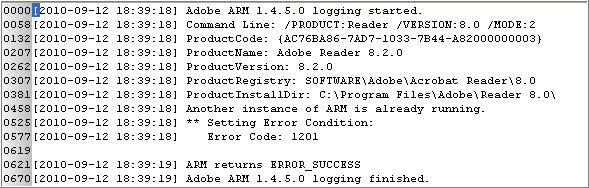
The next few entries in the timeline indicated Adobe Reader was running and there was a modification to a log file used by Adobe at 18:39:19.
The content of this log file provided some useful information. First was that the Adobe ARM 1.4.5.0 logging was started at 18:39:18 and ended one second later. Second the log showed the version of Adobe Reader on the computer was 8.2 which is outdated since the latest version (at the time of this post) is 9.3.4.
The timeline showed there were modifications to Adobe ARM prefetch files further collaborating the ARM logging was running. At 18:39:14, a copy of SpyPro (MD5 ce5806f3f3a2afa8efe0272440ae6b2d) executed.
The remaining timeline entries leading up to when the last piece of identified malware was created on the system shows another copy of SpyPro (MD5 ce5806f3f3a2afa8efe0272440ae6b2d) executed, and there was a modification to a run key in my friend’s user account ntuser.dat. both of these are illustrated in the images below.

The following were modifications made to the ntuser.dat run key and the output is from Harlan Carvey’s Regripper:
* cepijgkk -> C:\Documents and Settings\****\Application Data\oexrvilnf\hdwhvqmuqiw.exe
* anyplcer -> C:\Documents and Settings\****\Local Settings\Application Data\bfuqvjmoj\hcdrsjbuqiw.exe
* Fnanaha -> rundll32.exe "C:\WINDOWS\qdfnst.dll",Startup

These registry modifications are a redundant persistence mechanism to the copies of SpyPro (MD5 ce5806f3f3a2afa8efe0272440ae6b2d) because the same modification was made to the Software Currentversion\Run key. However, the Software run key referenced egugehudafu.dll instead of qdfnst.dll. The qdfnst.dll is a different copy of the Hiloti Trojan and this file will be discussed later in this post.

Timeline Examination Summary Update:
**** The examination at this point brought us closer to the time period of interest which is 09/12/10 06:38:42PM. The examination identified two persistence mechanisms using a Run key in the Software registry hive and a user account’s ntuser.dat. Both of these mechanisms were configured to launch two copies of SpyPro (MD5 ce5806f3f3a2afa8efe0272440ae6b2d) and a copy of the Hiloti Trojan. The other activity in this portion of the timeline that could be meaningful was the Adobe ARM logging service was started.

Hopefully at this point of the examination I haven’t lost too many readers because the next portion of the timeline brings us to the time period of interest. At 18:38:58 two copies of SpyPro (MD5 ce5806f3f3a2afa8efe0272440ae6b2d) were created and executed on the system.
A registry modification occurred at the same time a copy of SpyPro (MD5 ce5806f3f3a2afa8efe0272440ae6b2d) executed on the system. The keys modified are illustrated below.
As can be seen in the picture two modifications occurred to the HCU\Software\Microsoft\Windows\Currentversion\Policies key. This key is associated with the attachment manager which attempts to protect your computer from unsafe attachments in emails or unsafe files from the Internet. For additional information refer to Microsoft’s support article 883260. The Policies\Attachments key was changed by adding "savezoneinformation" with the data of 1. According to the support article, this change makes Windows to not mark file attachments by using their zone information causing Windows to not make appropriate risk assessments.
The Policies\Associations key was changed by adding "LowRiskFileTypes" with a value of .exe. According to the support article, this change results in the user not being prompted when accessing .exe files regardless of the zone including Internet restricted zones.
I am not sure how these registry modifications fit into the attack since the majority of the malware was already present on the system. It leads me to believe the change was made in anticipation of downloading addition malware in the future. The next portion of the timeline is shown below.
Most of the activity between 18:38:53 to 18:38:51 involved copies of SpyPro (MD5 ce5806f3f3a2afa8efe0272440ae6b2d) and Hiloti (MD5 5170e6923859a70ede3b2685ccd5ba04) which were identified during the examination of the files of interest step. However, at 18:38:49 an executable named google.exe was created on the system (line 4955 in the above picture). The examination of this file determined it was a new piece of malware and the additional details are below.

google.exe
* File path: \Documents and Settings\****\Local Settings\Temp\google.exe
* VT result: malicious and hash search identified the file as Hiloti
* MD5 hash: a06e417b9743e65bbb9ace16d6d3a65f
* Creation date: 09/12/10 06:38:49PM
* Last written date: 09/12/10 06:38:51PM
* MFT last modification date : 09/12/10 06:38:51PM

The next few entries in the timeline showed a copy of a SpyPro (MD5 ce5806f3f3a2afa8efe0272440ae6b2d) and an unknown program (0.8503427712213907.exe) executed.
The next entries in the timeline finally bring us to 09/12/10 06:38:42PM which is the point of time when the first piece of identified malware identified was created on the system.
As you can see in the image copies of SpyBot (lines 4927 and 4928) was created on the system, one copy of SpyBot executed (line 4930), and the previously mentioned file qdfnst.dll on line 4929 had its MFT entry modified. The qdfnst.dll file was identified as a new copy of Hiloti and the following is the additional information about this file.

qdfnst.dll
* File path: \WINDOWS\qdfnst.dll
* VT result: malicious and hash search identified the file as Hiloti
* MD5 hash: f1abef9bd8240815ceaf97a7527318b2
* Creation date: 08/16/05 06:18:42AM (note: this file’s timestamp was modified)
* Last written date: 04/13/08 08:12:08PM
* MFT last modification date : 09/12/10 06:38:42PM

Timeline Examination Summary Update:
**** The examination has identified two new variants of Hiloti (MD5 a06e417b9743e65bbb9ace16d6d3a65f and MD5 f1abef9bd8240815ceaf97a7527318b2) on the system. Finally, we are at the point in time when the first piece of identified malware was created on the system. The examination up to this point has been looking for artifacts associated with the payload of the attack such as the numerous pieces of malware identified. However, the examination will now start to focus on trying to identify the initial infection vector which resulted in the first piece of malware being dropped to the system.****

At 06:38:41PM acrord32.exe prefetch file was modified and the unknown program (0.8503427712213907.exe) was executed. This is the second reference so far regarding this unknown program.
The picture below shows the next entries in the timeline which involve the Java deployment cache folder.
The entries of interest are on lines 4918 and 4919 because it showed 781da39f-6b6c0267.idx and 781da39f-6b6c0267 being created on the system at 18:38:39. The signature analysis identified the file 781da39f-6b6c0267 has having the zip file format. I first reviewed the content of the 781da39f-6b6c0267.idx file and this is shown below.
As you can see in the picture, there are two items of interest which are the IP address 91.213.217.31 and the rox[dot]jar file being accessed from the domain xhaito[dot]com. The IP address was queried and there were five hosts sharing this address.
The xhaito[dot]com mapped to the IP address so next I queried the domain in order to view the Whois record. The whois information is listed below and the contact information could be false.

Did you notice the xhaito[dot]com domain was created on 09/12/2010 which is the same day my friend’s system was infected? The time listed is 04:33:54 but I am not sure what timezone is used when a domain is registered. I performed a Google search for the domain and the domain was present in the MalwareURL database.

The URLs listed in the database don’t match the URL in the .idx file but the URLs still involve the same domain. The picture below was the other information found on MalwareURL about this domain.

Xhaito[dot]com domain was first listed in the database on 09/15/2010 with the description of the Siberia Exploit Pack sitting on this IP address with the Hiloti Trojan as the payload. The examination has already found a few different copies of the Hiloti Trojan so the information in this database seems to match up to the artifacts on the system. The research I did on the exploit pack indicates the tool only has exploits for Adobe Reader and Java.

The 781da39f-6b6c0267.idx file provided valuable information including a jar file being referenced from a domain that is hosting an exploit pack and the Hiloti Trojan. The 781da39f-6b6c0267 file was the jar file downloaded from this domain. The content of this file contained eight class files.

I have been using online scanners to help me examine Java files but I have never encountered a jar file before. I reached out to the Yahoo Win4n6 group for feedback on how to review these files and the answer I received was to examine the jar file with a Java decompiler in order to see the code. I tried this using one of the suggested decompilers which was the JD-GUI. I didn’t make much progress on this and this is an area I have added to my list to improve my knowledge on. However, a member in the Win4n6 group provided me with a hint to look for file names and I saw the reference below.
The jar file had a reference to the file google.exe. Google.exe has already been located and it was confirmed this was a copy of the Hilot Trojan (MD5 a06e417b9743e65bbb9ace16d6d3a65f).

The 781da39f-6b6c0267.idx and 781da39f-6b6c0267 files are good candidates to be involved with the initial infection vector because the files appeared on the system one second before 18:38:42 (this is when the first piece of identified malware was created on the system). Plus whatever the purpose was of these files it appeared to succeed since the google.exe executable ended up on the system. However, I didn’t reach the point in the examination where there was no longer a trail of artifacts so the examination continued. The timeline showed that one second before the idx and jar files were downloaded a different copy of the Hiloti Trojan with the name of qdfnst.dll was accessed. This means the idx and jar files are not the initial infection because the system was already infected before these files appeared on the computer.
The next area of the timeline showed more activity of an infection before the 781da39f-6b6c0267.idx and 781da39f-6b6c0267 files were dropped on the system. The picture below shows the entries.
At 18:38:38 the command prompt was accessed which was one second after a Java prefetch file was modified. Previously I referenced an unknown program named 0.8503427712213907.exe executing on the system and this file was created on the system at 18:38:35. This executable was examined and it was the same file as google.exe since the MD5 hashes were the same. Here is some additional information about the file:

0.8503427712213907.exe
* File path: \Documents and Settings\****\Local Settings\Temp\0.8503427712213907.exe
* VT result: malicious and hash search identified the file as Hiloti
* MD5 hash: a06e417b9743e65bbb9ace16d6d3a65f
* Creation date: 09/12/10 06:38:35PM
* Last written date: 09/12/10 06:38:36PM
* MFT last modification date: 09/12/10 06:38:36PM

At 18:38:35 another file was created on the system at the same time as the Hiloti Trojan (MD5 a06e417b9743e65bbb9ace16d6d3a65f). The content of this file is shown below.
I started performing searches using various strings of characters from this file and this activity lead me to a full discloser archive about the Microsoft Windows Help Center vulnerability. The exploitation of this vulnerability allows an attacker to bypass the trusted documents whitelist and execute arbitrary commands. According to the full disclosure archive, the attack against this vulnerability would look like the following (I am only including the information that provides context to a few of the next artifacts on the system).

* A user would be forced to fetch an .asx file with the htmlview element
* From the htmlview element the hcp protocol gets called in order to exploit the vulnerability to bypass the whitelist
* After the whitelist is bypassed then arbitrary commands can be executed in the context of the user’s privileges

The contents of the hcp[1].htm is the exact same as the code used to defeat the whitelist. A section in the archive mentions accessing a hcp:// URL in Internet Explorer version 8, Firefox, or Chrome results in a command prompt. The system under examination had Internet Explorer 8 installed and Line 4911 shows the command prompt being accessed. The presence of the hcp[1].htm file, the command prompt being accessed, the Hiloti Trojan (MD5 a06e417b9743e65bbb9ace16d6d3a65f ) named 0.8503427712213907 on the system, and the system not having this patch installed leads me to believe this exploit was successful.

The next group of entries in the timeline involved Java running on the system as illustrated below.
The next significant entry in the timeline was a file being created in the Temporary Internet Files folder at 18:38:25.
The content of this file was examined and it showed there was not only a reference to the jar file that was downloaded to the system but there was a reference to the xhaito[dot]com domain as well (note: this was one of the URLs listed in the MalwareURL database). At this point I definitely realized I need a better understanding of examining artifacts.
I uploaded the file to jsunpack to be scanned and the results provide context for a few of the files located on the system. The picture below indicates there was an .asx file located on the xhaito[dot]com which is one required component for the help center vulnerability.
The URLs section of jsunpack shows the URLs requested. Notice the call for the hcp URL which was present in the hcp[1].htm file and the reference to the jar file. I saw the reference for a pdf but there was not one present on the system even though Adobe was running at some point.
Continuing on with the review of the timeline the last significant entry related to the initial infection vector occurred at 18:38:24 which was one second before the show[1].htm file appeared on the system.
I am not sure if you remember when I mentioned in Part 1 the entries from the PrivacIE folder’s index.dat file are from third-parties hosting content on websites. At 18:38:24 a PrivacIE entry shows that the show.php was accessed from the xhaito[dot]com domain.

Timeline Examination Summary Update:
**** The trail of artifacts including malware and the xhaito[dot]com domain stopped after this point in the examination. The antivirus scans I conducted after I cleaned the system confirmed the first piece of malware was the 0.8503427712213907 file (the scans found copies of malware in the restore points). This malware appeared on the system at the same time of an artifact from the exploit of the Windows Help Center vulnerability. This doesn’t have a bearing on my examination but I wanted to mention through my research the Siberia Exploit pack referenced in the MalwareURL database doesn’t have the hcp exploit. A different exploit pack or an updated version of Siberia was used in this attack. The initial infection vector for this system appeared to be that third party content was hosted on a website which redirected users to the xhaito[dot]com domain for a drive-by attack. One of the vulnerabilities targeted in this drive-by was the Windows Help Center vulnerability.****

At this point I wanted to go further down the rabbit hole to see if I could locate the malicious third-party content and to find out what website was hosting the content. Unfortunately, I couldn’t find the malicious content referencing the xhaito[dot]com domain but as I stated previously I need a better understanding of examining artifacts. The bright side was I had another lead to pursue because there were two PrivacIE entries at 18:38:24 as illustrated below.
The other PrivacIE entry was from the batfior[dot]co[dot]cc domain. I tried to research this domain and I was unable to locate any information on it. The other artifacts before these timeline entries seemed to be associated with ads being displayed. The next file of interest was created on the system at 18:38:22 which is one second before the two PrivacIE entries.
The picture below shows the contents of this file.
I performed a few Google searches using different characters from the file’s contents that didn’t result in anything fruitful. I uploaded the file to jsunpack and received the following:
I am not sure what this file is and the function it performs so I continued reviewing the timeline. The next lead I found also involved a file being created on the system at 18:38:22.
This file was uploaded to jsunpack and the first interesting item was the URLs.
The URLs were listed as iframes as can be seen below.
The first URL listed is for the batfior[dot]co[dot]cc domain which appeared at the same time as the PrivacIE entry for the xhaito[dot]com domain. This file was the last reference I found for the batfior[dot]co[dot]cc domain on the system so I started to research the trueffects[dot]net domain. The domain mapped to IP address 72.9.236.172 which was shared with two other domains.
To learn more information I performed a few Google searches for the trueffects[dot]net domain. One of the first hits I found was a post on a blog called Spyware Sucks. There were multiple posts from 09/01/2010 to 09/03/2010 mentioning how the facilitatedigital[dot]net domain was spreading malvertizing. At the time the author suggested to be careful with content from trueffects[dot]net as well since it shared the same IP address. I thought this was interesting and then I saw the next entry in the timeline.
Back to Google I went to search for this URL and the first hit was a thread in the Kaspersky forums. A user posted on 09/18/2010 there was a message indicating something was blocked from the trueffects[dot]net/www/cmd URL. Keep in mind this user’s post was six days after my friend’s computer was infected. I posted a few of the Google search hits below involving this domain (I edited the hits’ URLs). As you can see there is indications this may be a risky domain and there was even a hit for a comment made on 09/14/2010 about one of Yahoo’s advertisers supplying a URL from trueffects[dot]net which tried to infect their computer.
Continuing on with the timeline there was another file created at 18:38:22. This file was a cookie shown below.
Here is the content of this file.
The domain in the cookie mapped to the IP address 168.75.207.20. The few Google searches I performed both resulted in hits on ThreatExpert for the domain and IP address. The picture below shows the search I performed on ThreatExpert in order to show the hits I saw through Google (I only did this for this post because the screenshot of the Google search was too large).
All of the artifacts I have been discussing occurred at 18:38:22 which was one second before the xhaito[dot]com domain PrivacIE entry. You may be asking yourself what occurred before 18:38:22 and the timeline entry below answers that question.
This entry is for the yimg[dot]com domain and the brief research I did on this domain indicates the domain is controlled by Yahoo. The timeline showed there was no activity at all on the system between 18:38:05 and 18:38:21. This means the trail of artifacts on the system ended at 18:38:21 and the last activity on the system initiated by my friend is shown below.
My friend was at his Yahoo email at 18:36:06 but there was a PrivacIE entry from a local newspaper in my area indicating he may also have been at that website as well.

Timeline Examination Summary Update:
**** The trail of artifacts including malware and the xhaito[dot]com domain may have stopped but there was other activity on the system that provided an additional lead. By following this lead it resulted in the trueffects[dot]net domain being discovered and this domain is associated with malvertizing. I wasn’t able to identify the website whose advertiser provided the malicious content that caused this redirect but I was able to narrow it down to two websites. This was the point in the rabbit hole where my journey of trying to find the answer of what on my friend’s system caused the malware to be downloaded ends.****


Overview of the Attack
I don’t want to give the impression my examination was completed because I didn’t complete one important step. This is the examination of the artifacts located including the malware, jar file, and the files associated with third-party content. I think some of these files would have to be analyzed in order to fully understand how the attack occurred. I presented a lot of information involving the examination of my friend’s computer. The sheer amount of information may have made it difficult to see what happened on the system so the following timeline highlights the significant events of this attack.

* 09/01/10 to 09/03/10 Spyware Sucks blog had a few posts mentioning facilitatedigital[dot]net domain was spreading malvertizing. The author warned about the trueffects[dot]net domain since it shared the same IP address
* 09/12/10 McAfee's description write-up on FakeAlert-SpyPro.gen.ai was discovered. This was referenced in the 09/13/10 blog post.
* 09/12/10 Google search hit located a person posting a comment about trueffects[dot]net is connected to malware
* 09/12/10 04:33:54 The xhaito[dot]com domain Whois record was created. This domain was hosting an exploit pack and the Hiloti Trojan.
* 09/12/10 06:36:06PM User accessed Yahoo email and there was activity involving timesunion.com which is a local newspaper.
* 09/12/10 06:38:05PM to 06:38:21PM There was no activity on the system.
* 09/12/10 06:38:21PM PrivacIE entry for a domain controlled by Yahoo.
* 09/12/10 06:38:22PM Cookie from this[dot]content[dot]served[dot]by[dot]adshuffle[dot]com was created on the system. This domain was associated with malware.
* 09/12/10 06:38:22PM asrefinc11[1].js was created. Jsunpack identified this file as suspicious.
* 09/12/10 06:38:22PM l[1].htm was created. This file had references to the batfior[dot]co[dot]cc and trueffects[dot]net domains. The trueffects[dot]net domain was associated with malware and maps to a IP address shared by another domain associated with malware.
* 09/12/10 06:38:22PM PrivacIE entry for the trueffects[dot]net domain.
* 09/12/10 06:38:24PM PrivacIE entries for the batfior[dot]co[dot]cc and xhaito[dot]com domain. This means these domains were hosting content on a website the user visited. the xhaito[dot]com domain was hosting malicious content.
* 09/12/10 06:38:25PM show[1].htm file was created on the system. This file had references to a few of the artifacts (jar file and the Windows Help Center vulnerability). Also, this file was associated with the xhaito[dot]com domain.
* 09/12/10 06:38:35PM The hcp[1].htm file was created on the system. The content of this file is associated with the Windows Help Center vulnerability.
* 09/12/10 06:38:35PM 0.8503427712213907.exe (Hiloti MD5 a06e417b9743e65bbb9ace16d6d3a65f) was created.
* 09/12/10 06:38:38PM Command prompt was accessed. This might have been due to the windows help Center vulnerability being exploited.
* 09/12/10 06:38:38PM Qdfnst.dll (Hiloti MD5 f1abef9bd8240815ceaf97a7527318b2) was accessed.
* 09/12/10 06:38:41PM 781da39f-6b6c0267.idx and 781da39f-6b6c0267 were created on the system. The files were associated with the xhaito[dot]com domain and the 781da39f-6b6c0267 was a jar file with a reference to google.exe.
* 09/12/10 06:38:41PM 0.8503427712213907.exe (Hiloti MD5 a06e417b9743e65bbb9ace16d6d3a65f) was executed.
* 09/12/10 06:38:42PM Qdfnst.dll (Hiloti MD5 f1abef9bd8240815ceaf97a7527318b2) MFT record was modified.
* 09/12/10 06:38:42PM 176572328.exe (Hiloti MD5 5170e6923859a70ede3b2685ccd5ba04) and 176572329.exe (SpyPro MD5 ce5806f3f3a2afa8efe0272440ae6b2d) were created.
* 09/12/10 06:38:49PM Google.exe (Hiloti MD5 a06e417b9743e65bbb9ace16d6d3a65f) was created.
* 09/12/10 06:38:51PM 176581812.exe (Hiloti MD5 5170e6923859a70ede3b2685ccd5ba04) and 176581813.exe (SpyPro MD5 ce5806f3f3a2afa8efe0272440ae6b2d) were created.
* 09/12/10 06:38:58PM hdwhvqmuqiw.exe (SpyPro MD5 ce5806f3f3a2afa8efe0272440ae6b2d) was created on the system in two locations. One was the user profile\Local Settings\Application Data\ while the other was the user profile\Application Data\.
* 09/12/10 06:38:58PM Registry modification was made to HKCU\Software\Microsoft\Windows\CyrrentVersion\Policies. Two keys were modified to make Windows not to make appropriate risk assessments and to not prompt the user when accessing files with the .exe extension.
* 09/12/10 06:39:04PM hcdrsjbuqiw.exe (SpyPro MD5 ce5806f3f3a2afa8efe0272440ae6b2d) was created.
* 09/12/10 06:39:04PM Registry modification was made to HKCU\Software\Microsoft\Windows\Currentversion\Run. There were values here to launch two copies of SpyPro and one copy of Hiloti.
* 09/12/10 06:39:19PM Vulnerable version of Adobe was running (Adobe reader v8.2.0)
* 09/12/10 06:39:31PM The user was accessing Yahoo email.
* 09/12/10 06:40:40PM egugehudafu.dll (Hiloti MD5 30fd84f3c0e0dc7666658dc52c216a2a) MFT record was modified.
* 09/12/10 06:40:40PM Registry modification was made to HKLM\Software\Microsoft\Windows\Currentversion\Run. There were values here to launch two copies of SpyPro and one copy of Hiloti.
* 09/12/10 06:41:52PM Yahoo cookies were created in the user profile.
* 09/12/10 06:50:29PM The user visited FaceBook.
* 09/12/10 07:03:12PM get2[1].php (MD5 ef3501a3a215949bd61142139f631406) was created and this file came from the 231207da0903[dot]deanard[dot]com domain. The parent domain had links to an affiliate program which pays customers for spreading malware.
* 09/12/10 07:03:12PM arezires.dll and get2[1].php (FakeAlert MD5 ef3501a3a215949bd61142139f631406) were created on the system in two locations. One location was \WINDOWS\ while the other was user profile\\Local Settings\Temporary Internet Files\Content.IE5\. The content of this file had a reference to antivirpwr[dot]com domain which was advertising security software.
* 09/12/10 08:13:08PM The system was completely powered down.
* 09/13/10 McAfee Avert Labs blog had a post about an increase of submissions from customers for a variant of FakeAlert-SpyPro.gen.ai.
* 09/14/10 Google search hit identified a person who mentioned that one of Yahoo’s advertisers supplying a URL from trueffects[dot]net which tried to infect their computer.
* 09/15/10 xhaito[dot]com domain was entered into the MalwareURL database as being malicious.
* 09/15/10 Two co-workers mentioned they both knew about someone being infected on Sunday.
* 09/18/10 Google search hit identified a person posted in the Kaspersky forums that the software blocked something coming from the trueffects[dot]net/www/cmd URL.

As I mentioned previously, I haven’t completed the entire examination but I have started to form my hypothesis about what happened. The hypothesis is the computer was infected with SpyPro because my friend visited a website at the time third party content was displayed which resulted in his browser being redirected to a malicious domain. My reasoning behind this hypothesis is because it appears the malicious content (an advertisement) started a chain reaction with the computer visiting the xhaito[dot]com domain which was hosting an unknown exploit pack performing drive-by attacks. This exploit pack attempted to exploit at least two vulnerabilities present on the system (the windows help center vulnerability and an unknown vulnerability the jar file targetted) and at least one exploit was successful since the payload of the Hiloti Trojan was installed on the system. There were no artifacts of another exploit or of another attack when the first SpyPro was created on the system. Plus Microsoft stated the Hiloti Trojan is a downloader. Therefore, I am thinking SpyPro was downloaded to the system by one of the copies of the Hiloti Trojan.

At this point I was able to clean my friend’s computer and I identified a few areas of the investigation process I want to learn more about. My next steps in the examination would have been to complete the examination, develop my hypothesis about what happened, and then test this hypothesis to determine if it is valid.


Lessons Learned
When my friend asked me for assistance I could have just wiped and rebuilt his system for him. This is a practice I have seen back in my IT days, it’s a practice I read about on the Internet, and it’s a practice still occurring at a lot of organizations judging by the discussions I have had with people. If I would have followed this practice then you wouldn’t be reading this blog nor would there have been any lessons learned. My friend eventually would have been re-infected once his programs became out of date again since the lack of software updates contributed to his system getting infected. Plus I wouldn’t have had this opportunity to learn some new things as well as identifying some areas I would like to get a better understanding about.

I was able to explain the significance of regularly updating the software on a computer to my friend since this was what caused his system to become infected. If the cause was opening a malicious email or his children downloading something then my advice would have been different but it still would have focused on the root cause of the infection. As I was thinking about this, a question keeps running through my mind. How can you provide sufficient advice on the security controls that could help mitigate an incident from reoccurring without knowledge of the incident’s root cause? I think this question would apply whether if the recommendations are for a friend, a customer, or an organization you are employed with.


In closing, I wanted to thank my friend for allowing me to share this examination through my blog. I think this information could be useful to a range of people, and comments from readers could help me understand what I missed or what I could do differently. None of this would have been possible without my friend’s willingness to share even if he got free tech support. ;)