skip to main |
skip to sidebar
Tuesday, February 22, 2011
Posted by
Corey Harrell
Finally
As I’m writing the first paragraph of a paper for my Masters of Science program the only thought that keeps running through my mind is finally. I finally reached not only the last week of class but the last week of my master’s program. In a few days I will finally complete the MSIA program when I submit my paper and my experience -not the knowledge- will gradually become a distant memory.
The second thought to run through my mind was everything on my to do list. My list has been piling up over the months and one of the more recent items on the list is the lack of my blog posts over the past few weeks. This will hopefully change once I’m done with school and a few of the future posts will cover some of the things I’m looking at including Java vulnerability exploit artifacts, my introduction to log analysis, and possibly a new crime scene camera that people are putting into their homes.
In the meantime here are a few links about timelines.
Timeline Analysis Links
Kristinn has an excellent post about analyzing timelines which can be found here. I previously blogged about reviewing timelines with Excel (post is here) and Calc (post is here). I created the timelines using mactime and redirected the output to a csv file which I then imported into Excel. Kristinn approaches analyzing timelines with Excel a different way. Kristinn mentioned that filtering is not optimal with mactime and Excel so he uses the CSV output module in log2timeline to create the timeline. One of the limitations I found with Excel was the limit on the number of variables you can filter on using basic filters (Calc had a higher limit but it was still only eight variables). This was one of the reasons I looked into using advanced filters, Kristinn's approach is really interesting since the CSV module breaks up the description field which makes it easier to filter on using basic filters. His write-up is very informative and educational. Trying out this approach has been added to my to do list. Kristinn, thanks again for the write-up and sharing this information.
One of the downsides to being state public sector employee – especially for New York state- is the lack of funds to attend trainings and conferences. This is the main reason why I like when speakers share their conference presentation slides since it lets people who couldn’t attend the conference (aka me) to see some of the presented material. Mandiant posted their DoD Cyber Crime 2011 presentations and one of them was Rob Lee’s Super Timeline Analysis presentation. My biggest take away from Rob's slides was his research on the Windows time rules (I was already familiar with the other content in the slides since I read Rob's post on the SANs forensic blog about supertimelines and volume shadow copy timelines). The Windows time rules (slides 15 and 16) outline how the timestamps in the Standard Information Attribute and Filename Attribute are changed by actions taken against a file. For example, you can see the difference between the changes to a file's timestamps when it is moved locally as compared being moved to another volume. The charts are a great reference and thank you Rob for sharing this information.
Monday, February 7, 2011
Posted by
Corey Harrell
I was working on a computer a few weeks ago (non-work related issue) when my antivirus scanner flagged two files. The names of the two files were 2371d6c6-2a6da032.idx and 2371d6c6-2a6da032; both files were located in the Sun Java cache folder. The first time I came across this type of artifact I mentioned it in the jIIr post Anatomy of Drive-by Part II. This time around things were different because I didn’t have to identify the files since the antivirus software marked them as containing the CVE-2010-0094 exploit. I thought this known Java exploit was a good candidate for a sample to practice on. Not only could the sample be used to learn how to analyze Java exploits with REMnux but it could also be used to try out a few recipes from the Malware Analyst’s Cookbook. This post is the examination of the 2371d6c6-2a6da032.idx and 2371d6c6-2a6da032 files which consists of the following:
* Understand the Java Cache folder
* Examine the IDX File
* Examine the JAR File
* Extract Java Source from the JAR File
* Examine Java Source
Understand the Java Cache folder
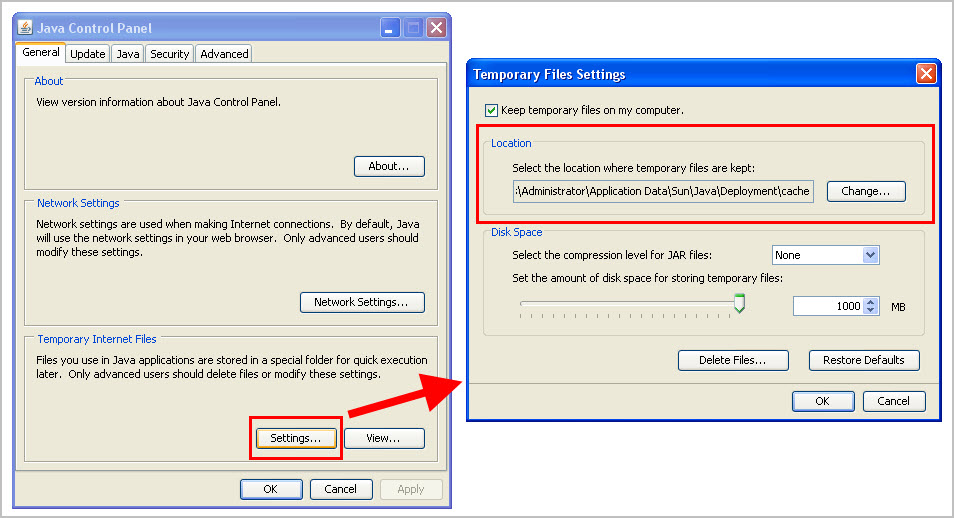
The 2371d6c6-2a6da032.idx and 2371d6c6-2a6da032 files were located in the following folder: Users\\AppData\LocalLow\Sun\Java\Deployment\cache\6.0\6\. This folder is the default location where Java stores temporary files on the computer so the files can be executed faster in the future. The picture below highlights where the temporary file location can be changed from its default value in the Java Control Panel. Note: the picture was taken from a Windows XP system but the samples came from a Windows 7 system which is why the path shown below is different than the one I mentioned.
Examine the IDX File
The storage location of the 2371d6c6-2a6da032.idx and 2371d6c6-2a6da032 indicate they are temporary files. The files in the cache folder with an extension of IDX are Java applet cache index. The index tracks information about the temporary files in the cache folder such as: the file’s name, URL the file came from, IP address of the computer the file came from, the last modified date of the file, and what appears to be the date of when the file was downloaded. The picture below shows this information stored in an index file I grabbed from my Java cache folder. Note: Skillport is a legitimate website so the information below is not malicious.


******** Update ********
At this point I thought the next step could be to conduct a few searches using keywords from the JAR file. I performed a few quick searches using different combinations of the names of the class files in the JAR file. I wasn’t able to find the same 2371d6c6-2a6da032 file but I found other files that had similar class file names. A few of the search hits are listed below.
* Oct 7, 2010: JAR file was run through ThreatExpert and there were no detections
* Oct 29, 2010: JAR file was run through ThreatExpert and there were no detections
* Oct 31, 2010: 2371d6c6-2a6da032 file being examined was downloaded
* Dec 06, 2010: JAR file was run through ThreatExpert and there was one detection
* Dec 23, 2010: Microsoft Malware Protection write-up on TrojanDownloader:Java/Rexec.C
* Feb 03, 2010: 2371d6c6-2a6da032 file being examined was run through ThreatExpert and there were numerous detections
Summary
The Java cache folder is one location on a system where there could be artifacts of a Java exploit. The folder’s location can be changed but the default location for Windows 7 is \\AppData\LocalLow\Sun\Java\Deployment\cache\6.0\6\ while Windows XP is \\Application Data\Sun\Java\Deployment\cache\6.0.
For each temporary file downloaded into the Java Cache folder will result in two files being present. One file will be the actual temporary file while the second file will be the Java applet cache index for the temporary file. The index tracks information about the temporary file such as: the file’s name, URL the file came from, and the file’s last modified date. The temp file and its index can provide valuable information about the file’s purpose and where it came from.
Now back to my examination. I was unable to analyze the Java code in the JAR file and the few quick Google searches I performed didn’t provide a good hit (around the time of 10/31/2010) to confirm my suspicions about the file. However, I was able to quickly confirm my suspicions using the information from the index file. A quick Google search of the IP address 91.213.217.35 resulted in a hit for the Malc0de database. The Malc0de database entry is shown below.
Notice the first entry was on 11/01/2010 which was one day after the JAR file was downloaded to the system. The database entry contained the IP address and domain that was tracked in the 2371d6c6-2a6da032.idx file.
For anyone interested here is the VirusTotal report about the 2371d6c6-2a6da032 file. The report analyzed the file three months after the file was downloaded to the system I was looking at.
Thursday, January 27, 2011
Posted by
Corey Harrell
Wine is a program that lets Windows software run on other operating systems. This means Wine can be used to run Windows only forensic or malware analysis tools on the Sift workstation and REMnux. It’s so easy to get Wine up and running I wasn’t even sure if a blog post was needed. However, it never hurts to be informed. Here's a quick post on installing Wine and running Windows tools on Sift and REMnux.
Install Wine
The Sift v2 workstation and REMnux v2 both were built using Ubuntu Linux. The Wine website shows the different options for installing Wine on Ubuntu including using repositories, the GUI, or the command line. All of these options require the Sift and REMnux to have Internet access. I used the command line option since it only involved running the following commands:
* sudo add-apt-repository ppa:ubuntu-wine/ppa
* sudo apt-get update
* sudo apt-get install wine1.3
- Enter Yes to proceed with the installation
That’s right, just three commands to install Wine. The next few pictures show Wine being installed on the Sift workstation.
Running Windows Programs on the Sift and REMnux
Wine can be used to run standalone Windows programs or programs that require an installation process. I wanted Wine so I could run a few standalone Windows programs so this post won’t cover installing a program in Wine (the Wine website has information on this topic). To run a standalone Windows program the program needs to be launched with Wine. Most of the programs I’ve tested run without any issues but a couple programs required some tinkering. The pictures below show Windows programs running on the Sift and REMnux.
First up is Nirsoft’s IEHistoryView running on Sift.
Next is McAfee’s BinText running on REMnux.
Here is PEID running on REMnux.
As I mentioned before, not all of the Windows programs will run without any issues. For example, Digital Detective’s Dcode program fails to run because of a missing dll. This is shown below with the missing dll highlighted in the red box.
A quick search on a Windows system locates the msvbvm60.dll in the Windows\System32 folder (this search was done on a Windows XP system). To fix the missing dll error, just copy the msvbvm60.dll from a Windows system to Wine’s Windows\System32 folder as shown below.
Now here is the picture of Dcode running on the Sift. Some messages appear while Dcode runs so testing has to be done to make sure the program still converts all of the dates properly.
REMnux and Sift are great distributions since they come preconfigured with some of the tools I use. My main platform is Windows so REMnux and Sift save me a lot of time because I don’t have to setup my own Linux environments. At times I find myself switching between Windows and Linux to run certain tools. Wine gives me the option of bringing a few Windows tools over to the Linux so I won’t have to switch between the two operating systems as much.
Sunday, January 23, 2011
Posted by
Corey Harrell
I attended a lot of trainings as a communications technician in the Marines. There were formal trainings by outside parties, organized trainings by my unit, and formal education on my own to hone my troubleshooting skills. The goal of all of those trainings was to prepare me to perform my job regardless of the situation I might face. Even though I left the Marines, I carried over the same mentality to my career in information security especially for digital forensics. Using a mixture of formal education, paid training, and a lot of self training to ensure I'm capable of performing my job regardless of the situation I might encounter. However, outside of forensic challenges or forensic datasets I never had an organized way to approach self training until I wanted to learn about incident response investigations. This post will explain the approach I've been using but haven't documented until now.
Forensicator readiness is the method I've been using to help prepare myself to be able to investigate any situation regardless of the circumstances. If someone said "I need you to help figure out what caused this incident” I wanted to be able to hit the ground running. This is better than having to reply with "I'd like to help out but first I have to attend a training which by the way costs a few thousand dollars". I'm sharing my approach because I think it might be useful to others. Experienced analysts/examiners can use it to learn how to investigate new types of cases or students can use it to help prepare them for the common cases they might face. Forensicator readiness consists of the following six steps:
* Pick a Scenario
* Establish the Scenario’s Scope
* Collect Digital Information
* Examine Digital Information
* Scenario Simulation
* Identify Areas for Improvement
Ever since I read the Alexiou Principle (as described by Chris Pogue here and here) I've been using it in my cases. The principle has been helpful in planning out the investigation and keeping the investigation on track. I thought if it works for actual cases then it should work for simulations. Well, the principle does work in simulations so I use it in the forensicator readiness steps.
Pick a Scenario
There is always something to learn in digital forensics whether it’s a student studying the field in school or a forensicator who has been in the field for a number of years. It could be trying to understand how to investigate different types of cases, how to examine new data, or how to extract data from certain devices. The first step is to pick a scenario containing the item or situation of what is to be learned. The scenario could be based on the common types of cases processed in your organization or on a potential situation someone might need to investigate. A few scenario examples are: data leakage through USB device, sexual harassment involving company email, or a malware infected server.
Next a determination needs to be made to see if it’s possible to set up test systems to simulate the scenario. Research is completed in the collection, examination, and simulation steps and systems will be needed to run a few tests on. For example, I’d like to learn how to investigate a hacked database server. Unfortunately, I can’t use this scenario since I can’t simulate a SQL injection attack against a test database server. As a result, my focus is on the scenarios I can simulate in a test environment such as a malware infected system.
Having a scenario by itself isn’t enough because an end goal hasn’t been established; what is trying to be accomplished. This is where the first question of the Alexiou principle comes into play which is “what question are you trying to answer”. Identify a few potential questions to help guide the goal of the investigation. For example, the two potential questions of a suspected malware infected system I've been using are: is the system infected and how did the system become infected. The two questions identify what I’m trying to accomplish and helped guide my research in investigating a malware infected system.
Establish the Scenario’s Scope
The selected scenario has an end goal and can be replicated in a test environment. The next step is to determine the scope of the testing environment. Is the test environment going to be one computer or multiple computers? What operating systems are going to be on the computers? Are there going to be any networking devices such as routers, switches, or firewalls? Another consideration when determining the scope of the testing environment is what resources are available. Is there the necessary hardware and software to build the test environment? I'd like to be able to simulate a test environment of over 20 machines for my malware scenario but I can’t pull it off due to the lack of resources. I had to settle on just a few test systems and I’m still able to simulate my scenario. The above questions are only some of the things that have to be considered when scoping the test environment.
Setting up of the test environment during the next few steps may take some time. Despite the time required, one of the benefits of setting up your own environment is learning about the technology as you install and configure it. For example, if your scenario requires a web server running IIS (Windows Internet Information Service) then setting up IIS will provide a better understanding of what the default settings are and how it can be configured.
Collect Digital Information
At this point, the scenario has been identified, goals have been established, and the testing environment has been identified. The next step is to collect the digital information. The second question in the Alexiou principle states “what data do you need to answer that question”. The data sources in the test environment need to be evaluated to determine which ones can help you answer your question(s). The data sources could include hard drives, memory, logs, or captured network traffic.
Once the data sources of interest are identified then it’s time to research how these sources should be collected and what tools can be used. The amount of research required for this step will depend on the experience of the person conducting this exercise. In some instances, a person will already have a procedure in place for collecting the data sources and will have knowledge of the tools to use so additional research may not be necessary. On the other hand, the person may be facing a new data source(s) so there won’t be a procedure for the collection and the person won’t have knowledge about the tools to use. For example, in one of my scenarios I wanted to collect a hard drive and volatile data. I had experience with hard drives but collecting volatile data was new. I conducted research with the intention of modifying my collection procedures to include volatile data. The research involved reviewing RFC 3227, forensic books, blogs, and forums to determine what procedural steps were required to collect volatile data and what tools could be used to acquire volatile data from a system.
The new procedural steps and tools will need to be evaluated to determine if they work as intended. This evaluation will require a small test environment. Continuing with my volatile data example, I tested the procedural steps I researched and my list of tools to see which one best met my needs. I ran a few tests against Windows XP virtual machines by acquiring the volatile data from them. This not only allowed me to see if the steps were correct and what tool worked best but it also showed me what changes I had to make to the collection steps.
Examine Digital Information
At this point it's time to identify and extract the data required to answer the scenario questions. Continuing on with the Alexiou principle's second question “what data do you need to answer that question”; this question can further identify the data needed to answer the questions. The data sources have already been identified so the next part is to identify what information in those data sources can answer the questions. For example, in my scenario one of my data sources was volatile data so I had to figure out what information I needed from it. Some of the information was the running processes, established network connections, and loaded drivers. Once the exact information in the data sources is identified, the third Alexiou principle comes into play which is "how do you extract the data". Using the volatile data example, this would be determining how to extract the established network connections, loaded drivers, and running processes from the data.
As might be expected, research has to be conducted to decide what information in the data sources is needed to answer the questions and how that information can be extracted. The same types of references used in the collection step can be used such as blogs, forums, and forensic books.
Similar to the collection step, the new examination steps and tools need to be evaluated to see if they work as intended. The evaluation can use available forensic datasets or a small test environment. Forensic datasets can be used for testing different types of data sources and this is a faster option then setting up a test environment. The datasets available for testing the examination steps and tools for the volatile data example include: NIST CFReDS Project, Forensic Educational Datasets, Honeynet Challenges, or the memory images on the Forensic Incident Response blog. If there isn't an available dataset then a small test environment has to be set up. The fourth question of the Alexiou principle is "what does the data tell you". This question should be kept in mind during the evaluation because the purpose of the examination steps and tools are to extract information needed to answer the scenario questions. If the information doesn't help answer the question then additional research may have to be performed so the examination steps and tools can be adjusted.
Scenario Simulation
This step is where all of the hard work of researching and evaluating pays off. The scenario simulation is when the test environment is created and the scenario is simulated in that environment. The first scenario I've been working with is a computer infected with malware, and one of the ways I simulated this scenario was by visiting known malicious websites with a computer running vulnerable software. After the scenario is simulated then the next step is to treat the test environment like a real investigation. The data sources of interest get collected, and information is extracted from those sources to answer the scenario's questions.
Identify Areas for Improvement
Now that the dust has settled from investigating the scenario in a test environment; it's time to reflect back on what was done. The purpose of this step is to see if there is anything to improve upon. A few things for consideration are: did the tools perform as expected, were the procedures correct, what didn't work, and what can be done better. Something else to keep in mind during this reflection is to decide if any additional research has to be performed on any artifacts in order to get a better understanding about them. During my simulation, I didn't have a good understanding about the attack vector artifacts such as those left by exploits. I spent some time researching a few of these artifacts so I'd have a better understanding the next time I come across a similar artifact.
Summary
There isn’t a set time table to complete the forensicator readiness steps. It could take days, weeks, or months to complete. The time all depends on the scenario and how much of an understanding someone wants. People prepare for things differently and forensicator readiness is no different. If the steps can accomplish the end goal of preparing someone to investigate an incident regardless of the circumstances - like it did for me- then the process has served its purpose.
So when someone said to me "I need your help to figure out what caused this infection"; I was ready to rock and roll. I’ve been successful numerous times locating malware on systems and identifying the attack vector that put the malware on the systems. A few of the vectors were: a malicious email attachment, a drive-by download using a malicious PDF, and third party content pointing to a website hosting Windows help center and Java exploits. I don't think my success is a string of luck. It's due to my preparation for a situation I thought I would face sooner or later. It just so happened to be sooner than I was expecting.
Monday, January 10, 2011
Posted by
Corey Harrell
Artifact Name
Autoplay & Autorun Exploit Artifacts
Attack Vector Category
Exploit
Description
Microsoft stated the main purpose of Autorun is "to provide a software response to hardware actions that you start on a computer". The software response is to start media or applications on a computer when a drive is mounted to the operating system. Prior to Windows XP, Windows only had the Autorun feature which would start items based on commands in the autorun.inf file located in the root of the drive.
With the release of Windows XP, a new feature called autoplay was included and this feature is enabled by default starting with XP SP2. Autoplay will review a mounted drive for content such as multimedia and will prompt the user to display the content using the appropriate application. Autoplay will start to examine a drive as soon as the drive is mounted and will parse an autorun.inf file if the is present.
The Autorun and Autoplay features have been leverage to automatically start malicious software. One example of this is the w32/Autorun.worm.g (McAfee’s detection). According to McAfee’s write-up, the worm spreads using an autorun.inf to automatically start the worm when the media (removable media or network shares) is connected to a computer.
Attack Description
1. Create an autorun.inf file with a command to launch the intended application.
2. Place the autorun.inf in the root of a drive that will be mounted such as removable media or a network share.
3. Place the application in a location where it can be executed.
4. Have the drive mounted on the target computer in order for the autorun.inf file to be parsed.
Exploits Tested
Two custom autorun.inf files, one file used the open command while the other file used the shellexecute command. A renamed Windows command prompt was the payload of both files.
The open command specifies the application to be started when a drive is mounted. The picture below shows the entire autorun.inf file with the open command.
The shellexecute command uses file association to determine what application is used to launch the file listed in the command. The picture below shows the entire autorun.inf file with the shellexecute command.
Target System Information
* Two Windows XP SP3 virtual machines using an administrative user account (one VM was used for each autorun.inf)
* Two Windows XP SP3 virtual machines using an administrative user account (one VM was used for each autorun.inf)
* Two Windows XP SP2 virtual machines using an administrative user account (one VM was used for each autorun.inf)
* Two Windows XP SP2 virtual machines using an administrative user account (one VM was used for each autorun.inf)
Different Artifacts based on Administrator Rights
No
Different Artifacts based on Tested Software Versions
No difference between XP SP2 and XP SP3
Potential Artifacts
The potential artifacts include the changes in the operating system environment. The artifacts can be grouped in the following two categories:
* Windows Parsing the Autorun.inf File
* Registry Modification When Autoplay Window Closes
Note: The testing to locate the exploit artifacts involved using the Autoplay window in XP SP3 while in XP SP2 the removable media icon in My Computer was double clicked to launch the payload. There were minimal exploit artifacts as compared to the artifacts left by the delivery mechanism (removable media) and payload (Windows command prompt). The identified artifact filenames and values are inside of brackets in order to distinguish what may be unique to the testing environment.
* Windows Parsing the Autorun.inf File
Windows makes modifications under \Software\Microsoft\Windows\CurrentVersion\Explorer\MountPoints2\{GUID}\ registry key of the user account that mounted the drive. The modifications are made based on the contents of the autorun.inf file. The picture below highlights the relationship between the commands in the autorun.inf file and the registry modifications.
- Autorun.inf action command altered the data in MountPoints2\{GUID}\Shell\AutoRun\command\(Default). [data for the open command was E:\dmc-test.exe while data for the shellexecute command was C:\WINDOWS\system32\RunDLL32.EXE Shell32.DLL,ShellExec_RunDLL dmc-test.exe]
- Autorun.inf icon command altered the data in MountPoints2\{GUID}\_Autorun\DefaultIcon\(Default). [data was E:\dmc-test.exe,0]
- Autorun.inf shell open command altered the data in MountPoints2\{GUID}\Shell\open\command\(Default). [data was E:\dmc-test.exe]
- Autorun.inf shell explore command altered the data in MountPoints2\{GUID}\Shell\explore\command\(Default). [data was E:\dmc-test.exe]
- Data in MountPoints2\{GUID}\Shell\Autoplay\DropTarget\CLSID was modified. [data was {f26a669a-bcbb-4e37-abf9-7325da15f931}]
* Registry Modification When Autoplay Window Closes
- The registry key MountPoints2\{GUID} was modified when the autoplay window closes (the window closes when the payload is executed).
Timeline View of Potential Artifacts
The image below show the above artifacts in a timeline of the registry (system, software, and ntuser.dat hives) from the Windows XP SP3 with an administrator user account (autorun.inf file with the open command). A few entries from the file system timeline were added.
References
Autoplay Information
Microsoft support article on how to disable autorun http://support.microsoft.com/kb/967715
Other information
Autorun.inf Wikipedia http://en.wikipedia.org/wiki/Autorun.inf
Autoplay Wikipedia http://en.wikipedia.org/wiki/AutoRun
McAfee W32/Autorun.worm.g AV write-up http://vil.nai.com/vil/content/v_142616.htm
Sunday, January 2, 2011
Posted by
Corey Harrell
Artifact Name
Exploit Artifacts for CVE-2010-2883 (PDF Cooltype) Vulnerability
Attack Vector Category
Exploit
Description
Vulnerability present in the Cooltype.dll affects Adobe Reader and Acrobat versions 9.x before 9.4 and 8.x before 8.2.5 on Windows and Mac OS X systems. Exploitation allows remote attackers to execute arbitrary code or cause a denial of service.
Attack Description
This description was obtained using the Mitre and ISS X-Force Database references.
1. Create a PDF document with a “long field in a Smart Independent Glyphlets (SING) table in a TTF font".
2. Open the PDF document on the target system.
Exploits Tested
Metasploit v3.5 windows\fileformat\adobe_cooltype_sing
Target System Information
* Windows XP SP3 Virtual Machine with Adobe Reader v9.3 using administrative user account (No PDF files were opened on system prior to test)
* Windows XP SP3 Virtual Machine with Adobe Reader v9.3 using non-administrative user account (No PDF files were opened on system prior to test)
* Windows XP SP3 Virtual Machine with Adobe Reader v9.3 using administrative user account (Non-malicious PDF file was opened on system prior to test)
Different Artifacts based on Administrator Rights
Yes, MFT entry for "Program Files\Adobe\Reader 9.0\Reader\AcroRd32.exe" was modified when user account had administrative privileges.
Different Artifacts based on Tested Software Versions
Not tested
Potential Artifacts
The potential artifacts include the CVE 2010-2883 exploit and the changes the exploit causes in the operating system environment. The artifacts can be grouped under the following three areas:
* PDF Document Creation
* References of the PDF Document Being Accessed
* Indications of the Vulnerable Application Executing
note: the documenting of the potential artifacts attempted to identify the overall artifacts associated with the vulnerability being exploited as opposed to the specific artifacts unique to the Metasploit. As a result, the actual artifact storage locations and filenames are inside of brackets in order to distinguish what may be unique to the testing environment.
* PDF Document Creation
note: the location of the PDF document will vary depending on the delivery mechanism involved
- PDF document being created on the system in the timeframe of interest. [C:\msf-cooltype.pdf which VirusTotal confirmed as being the exploit]
* References of the PDF Document Being Accessed
note: the artifacts may vary depending on the method used to access the document. For example, Windows Explorer will leave different artifacts as compared to a web browser involved in a drive-by download. The testing involved opening the document using Windows Explorer.
- Web browser history with entries containing the PDF document. Entries may involve HTTP or file. [Internet Explorer entry file:///C:\msf-cooltype.pdf]
- Link files of the PDF document being opened. [C:\Documents and Settings\Administrator\Recent\msf-cooltype.pdf.lnk]
-User registry keys with values containing the PDF document. [HKCU-\Software\Microsoft\Windows\CurrentVersion\Explorer\RecentDocs\.pdf. This key had the name of the PDF in the MRU]
* Indications of the Vulnerable Application Executing
- Prefetch files of the vulnerable application executing. [C:\WINDOWS\Prefetch\ACRORD32.EXE-3A1F13AE.pf and C:\WINDOWS\Prefetch\ACRORD32INFO.EXE-242CE4AA.pf]
- Registry modifications involving the vulnerable application. [modifications made to subkeys under HKCU-\Software\Adobe\Acrobat Reader\9.0\]
- Folder activity involving the vulnerable application. [C:\Program Files\Adobe\Reader 9.0, C:\Documents and Settings\Administrator\Application Data\Adobe\Acrobat\9.0, or C:\Documents and Settings\Administrator\Local Settings\Application Data\Adobe\Acrobat\9.0]
- Temp files being created. [C:\Documents and Settings\Administrator\Local Settings\Temp\A9R9E95.tmp. The file signature indicated it was a PDF.]
Timeline View of Potential Artifacts
The images below shows the above artifacts in a timeline of the file system from the Windows XP SP3 system that had a non-malicious PDF file opened on the system prior to test. The timeline includes the relevant registry and Internet explorer history entires.
References
Vulnerability Information
Mitre’s CVE http://cve.mitre.org/cgi-bin/cvename.cgi?name=2010-2883
Other Information
Metasploit Blog Post http://blog.metasploit.com/2010/09/return-of-unpublished-adobe.html
Mila's Contagio Malware Dump David Leadbetter Post
ISS X-Force Database http://xforce.iss.net/xforce/xfdb/61635
Monday, December 13, 2010
Posted by
Corey Harrell
There are numerous resources available to assist you during a system examination. A few of them include search engines, blogs, books, forums, and listservs. These resources have helped me gain a better understanding of the data I’m seeing when processing cases. I thought one of the benefits of documenting the exploit artifacts left on a system would be to have a resource that could be referenced during examinations of compromised systems. I felt this would have been helpful during the examination of the system I discussed in the post Anatomy of a Drive-by II. I was unfamiliar with some of the artifacts from the attack against the system and this made it difficult to determine what vulnerability was exploited which lead to the malware being downloaded.
The one area of the attack vector I wasn't as confident about was the exploit used. The examination showed it could have involved Java, Adobe Reader, or the Windows Help Center Vulnerability. This was one of the reasons of why I started documenting the various attack vector artifacts by focusing on exploits instead of the delivery mechanisms. To identify the potential exploit artifacts I’m using the exploits in Metasploit by running the exploits against various test systems in order to see what artifacts are created. The first vulnerability I researched using Metasploit was the CVE-2010-1885 (Windows Help Center vulnerability) explot and the potential artifacts I found are documented here. However, this testing made me question if it’s feasible to use the artifacts left by Metasploit as a reference to compare against the exploits being used in the wild. I wondered if there was enough similarity between the various implementations of exploits (various exploit packs available) to make identifying the various artifacts meaningful. One way to find out is to compare the artifacts left by Metasploit against the artifacts left by an exploit pack being used in the wild. I'm going to be comparing the CVE-2010-1885 exploit artifacts against the system I suspected this vulnerability was exploited by an exploit pack. This will not only help determine the feasibility of using Metasploit to document exploit artifacts but the comparison can also show how useful a reference about attack vector artifacts could be.
Metasploit Potential Artifacts Summary
The potential artifacts of the CVE 2010-1885 exploit included the exploit itself and the changes the exploit caused in the operating system environment. As a reminder, the following is the summary of the five artifact areas and the artifacts located in those areas:
* Artifact with references to the ASX and iframe variables
- htm file located in a temporary folder
* Artifacts associated with the files specified in the ASX and iframe variables being accessed
- ASX file located in a temporary folder (parname = )
- htm file containing the iframe pointing to the hcp string
- Image file located in a temporary folder
- References to the above artifacts being accessed [Internet Explorer history contained entries of the files being accessed].
* Folder of interest associated with the exploit
- Activity involving the helpctr folder
* Artifacts associated with the hcp protocol
- Internet Explorer’s index.dat file recorded the activity of the hcp protocol
- Files located in the Temporary Internet Files folder. Files located in this folder are the same files which were located in the helpctr folder
* Artifacts associated with the Windows programs executed during the exploit
- Programs were executed verclsid.exe, helpctr.exe, and helpsvc.exe
Review of the Anatomy of a Drive-by Examination
The comparison will be made using the timeline and image of the system I referenced in the Anatomy of a Drive-by posts. The system will be examined to identify any of the potential artifacts from the Windows Help Center vulnerability being exploited. The bullets below show the attack artifacts I located when I examined this system (I copied the bullets from the drive-by post):
* 09/12/10 06:38:25PM show[1].htm file was created on the system. This file had references to a few of the artifacts (jar file and the Windows Help Center vulnerability). Also, this file was associated with the xhaito[dot]com domain.
* 09/12/10 06:38:35PM The hcp[1].htm file was created on the system. The content of this file is associated with the Windows Help Center vulnerability.
* 09/12/10 06:38:35PM 0.8503427712213907.exe (Hiloti MD5 a06e417b9743e65bbb9ace16d6d3a65f) was created.
To be safe I'm starting the review one minute before 06:38:25PM and five minutes afterwards. I think this timeframe is sufficient to identify if any CVE-2010-1885 exploit artifacts are present. The picture below shows the first portion of the system activity involving the Windows Help center vulnerability.
The xhaito domain was hosting an exploit pack used to compromise the system. There was a hidden iframe in the rain[1].htm that pointed to the xhaito domain (Line 847906) and the PrivacIE entry showed the system visited the malicious domain (Line 847904). The first artifact of the CVE-2010-1885 exploit was the htm file named show[1].htm in the Temporary Internet Files folder (line 847907). Jsunpack was used to examine the htm file when the malicious domain was still active. As a result, not only could you see a reference to an ASX file but the ASX file was actually downloaded as shown below.
I examined the show[1].htm file again to see if there was still a reference to an ASX file when the malicious domain was no longer active. The ASX file wasn’t downloaded but there was still a reference indicating an ASX file was involved.
The show[1].htm file also had a reference to the htm file containing the hcp string. The entire string was captured by Jsunpack when the malicious domain was still active as shown below.
There was only a reference to the htm file containing the hcp string when the domain was active. This reference can still be used to explain where the htm file came from.
The picture below shows the next portion of the system activity involving the Windows Help Center vulnerability.
The htm file (hcp[1].htm) referenced in the show[1].htm file was created on the system in the Temporary Internet Files folder (line 847947). The file’s content was obfuscated as shown below.
I used Jsunpack to examine the file in order to deobfuscate the file’s content. This revealed the hcp string as shown below.
The picture below shows the last portion of the system activity involving the Windows Help Center vulnerability.



 Posts
Posts

